
MochiBox / Home Screen Studio
Home Screen Studio
Match your whole Home Screen to your photo widgets. Make a collage wallpaper from your MochiBox photos, add themed clock, date, countdown and note widgets, and pick an app icon color. Tap the palette button on the albums screen to open it.
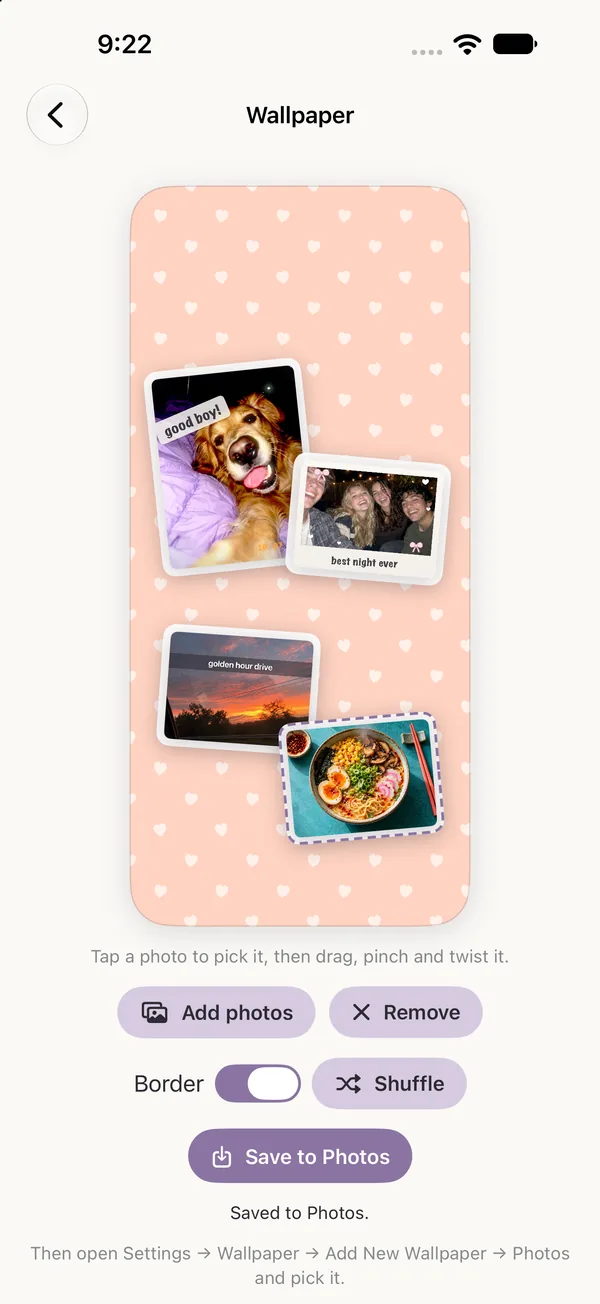
Collage wallpapers
Pick a theme for the background, then add up to six photos from your MochiBox albums. They keep their Looks, frames, stickers and text.
- Arrange by hand
- Tap a photo to pick it, then drag, pinch and twist it into place.
- Shuffle
- Scatter the photos into a new layout with one tap.
- Border
- Turn the white print border on or off.
- Full-size
- Saved to Photos at iPhone screen size, ready to set as your wallpaper.
To use it: open Settings → Wallpaper → Add New Wallpaper → Photos, and pick the image MochiBox saved.
Clock, date, countdown and note widgets
The MochiBox Studio widget comes in small and medium. Choose a style and a theme, and it sits beside your photo widgets in matching colors.
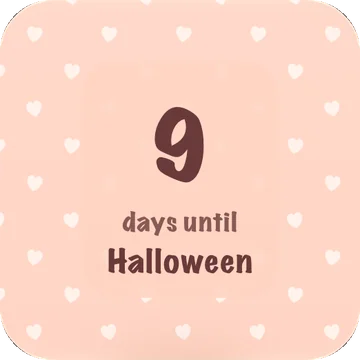
count down to anythingBirthdays, trips, the last day of school.
- Clock
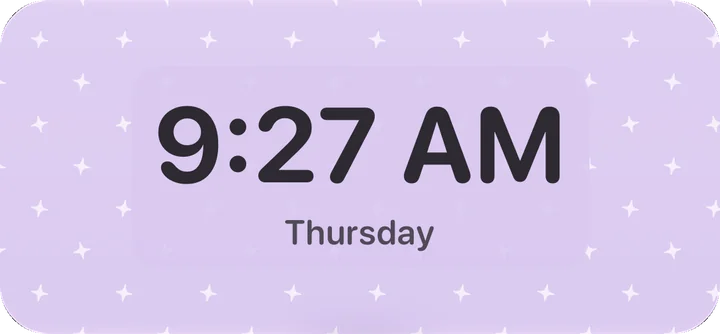
- The time and day in your theme's font.
- Date
- Today's day and date.
- Countdown
- Days until a date you choose. Type it or pick it from a calendar, and save countdowns to reuse.
- Note
- A short line of your own: a reminder, a motto, an inside joke.
Eight themes, or make your own
Each theme sets a background color, a pattern and a font. Use one for your wallpaper and Studio widgets, or design a custom theme.
- 9:27Thursday
Mochi Cream
- ThuOctober 29
Lilac Dream
- 9days until Halloween
Peach Soda
- buy filmnote
Matcha Latte
- 7:45Saturday
Butter Toast
- 23days until summer
Sky Pop
- FriNovember 6
Bubblegum
- 11:58good night
Night Plum
Custom themes: choose the background, accent and text colors, a pattern (Plain, Dots, Gingham, Stripes, Hearts, Stars or Checks) and a font (Rounded, Serif, Marker or Typewriter).
App icon colors
Give the MochiBox icon a background that matches your setup. iOS asks you to confirm the change, and you can switch back anytime.
 Sky
 Lilac
 Peach
 Butter
 Night
Still private
Themes, countdowns and notes are stored on your iPhone, like everything else in MochiBox. Wallpapers are saved to your photo library only when you tap Save to Photos.
Home Screen Studio questions
How do I make a photo collage wallpaper?
In MochiBox, tap the palette button on the albums screen and choose Wallpaper. Pick a theme, tap Add photos and choose up to six photos from your albums. Arrange them, then tap Save to Photos. Set it as your wallpaper in Settings → Wallpaper → Add New Wallpaper → Photos.
How do I add a clock or countdown widget?
Touch and hold your Home Screen, tap Edit, then Add Widget, and choose MochiBox. Swipe to the MochiBox Studio widget, pick small or medium and add it. Then touch and hold it, choose Edit Widget, and set the Style (Clock, Date, Countdown or Note) and the Theme. For a countdown, type a title and date or choose a saved countdown.
Can I make my own theme?
Yes. In Home Screen Studio, create a custom theme and choose its colors, pattern and font. Custom themes show up in the Studio widget's Theme list too.
How do I change the MochiBox app icon?
Open Home Screen Studio and choose App icon, then pick Lilac, Peach, Butter, Night or the original. iOS shows a short message confirming the change.
Does Home Screen Studio cost extra?
No. It's included in the one-time purchase, like every Look, frame and sticker pack.
Make your Home Screen yours
$1.99 once. Photo widgets, Home Screen Studio and every Look included.
Download on theApp Store