
MochiBox / How to add a photo widget
How to add a photo widget to your iPhone Home Screen
It takes about a minute. You'll need MochiBox and an iPhone with iOS 17 or later.
-
Make an album
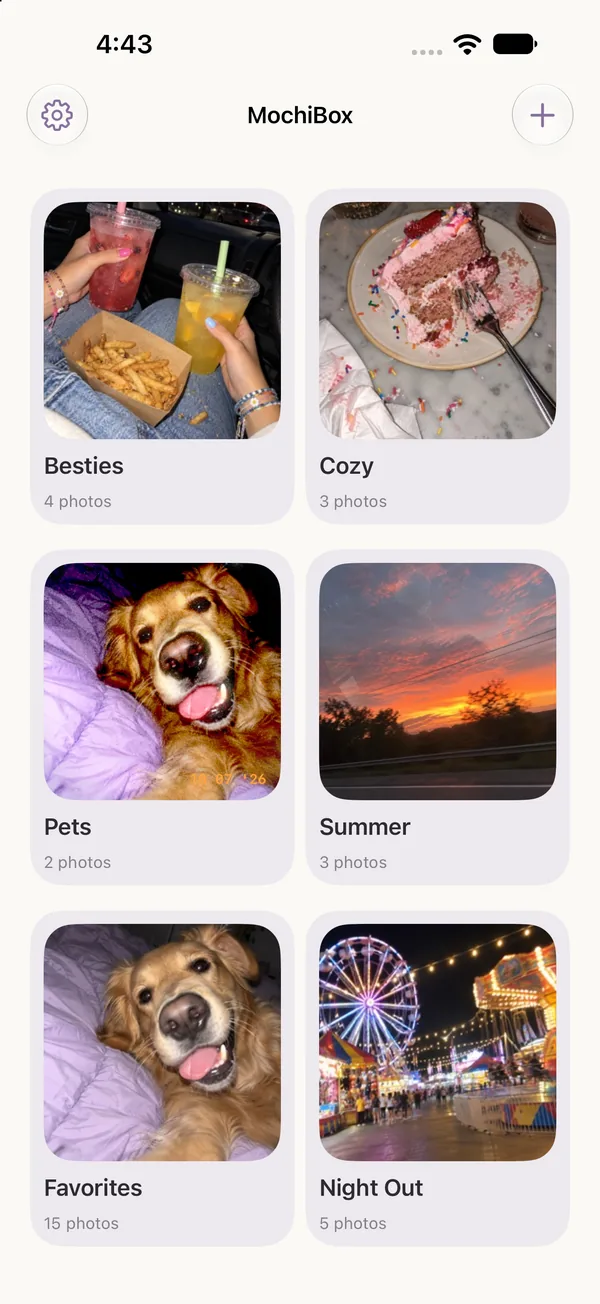
Open MochiBox and tap +. Name the album, then add photos with Apple Photos or Google Photos.
Want them styled? Open a photo and tap Edit to add a Look, a frame or stickers.
-
Edit your Home Screen
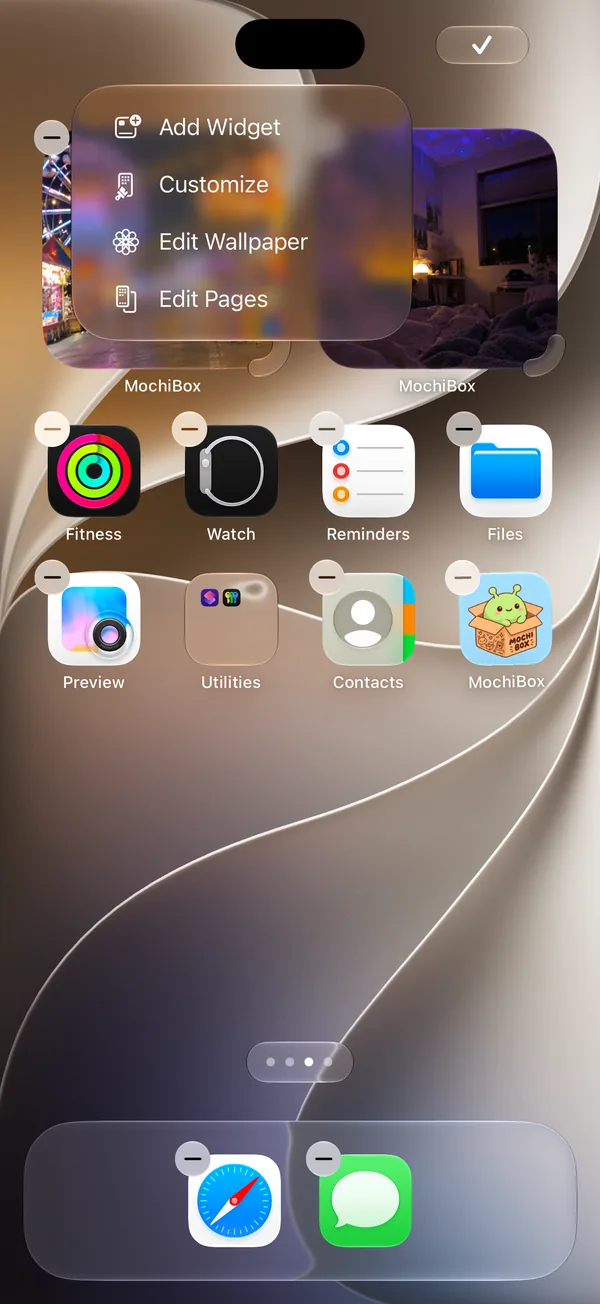
Go to your Home Screen. Touch and hold an empty spot until the icons jiggle, then tap Edit in the top corner and choose Add Widget.
-
Find MochiBox
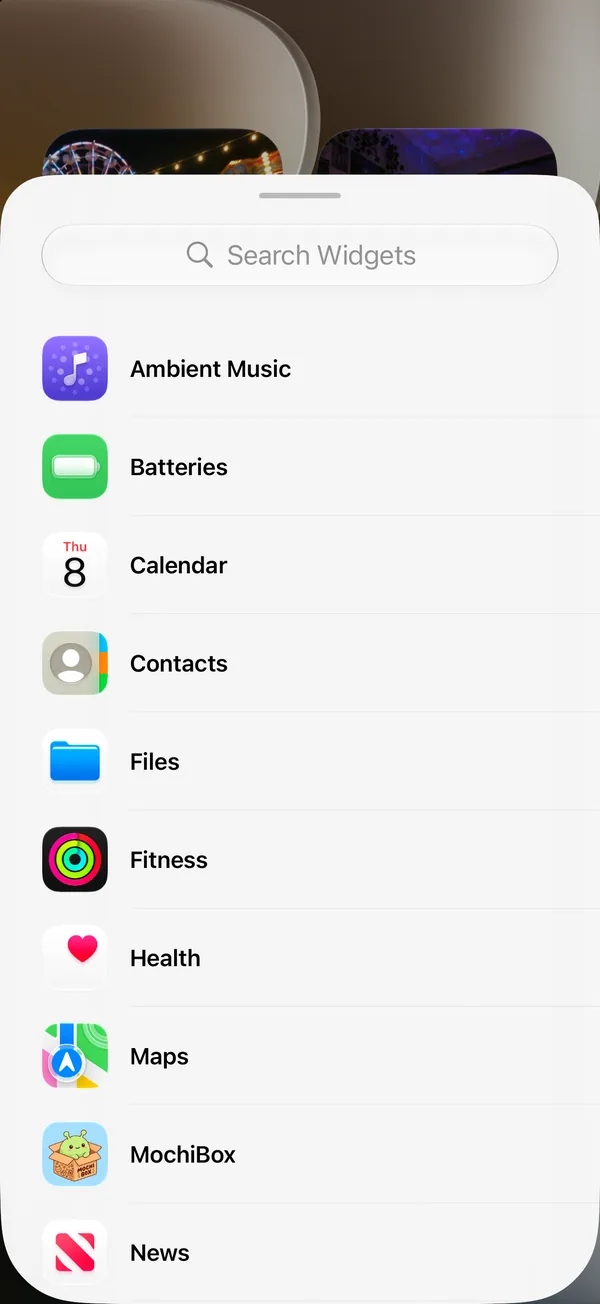
Scroll the list or search for MochiBox, then tap it.
-
Choose a size
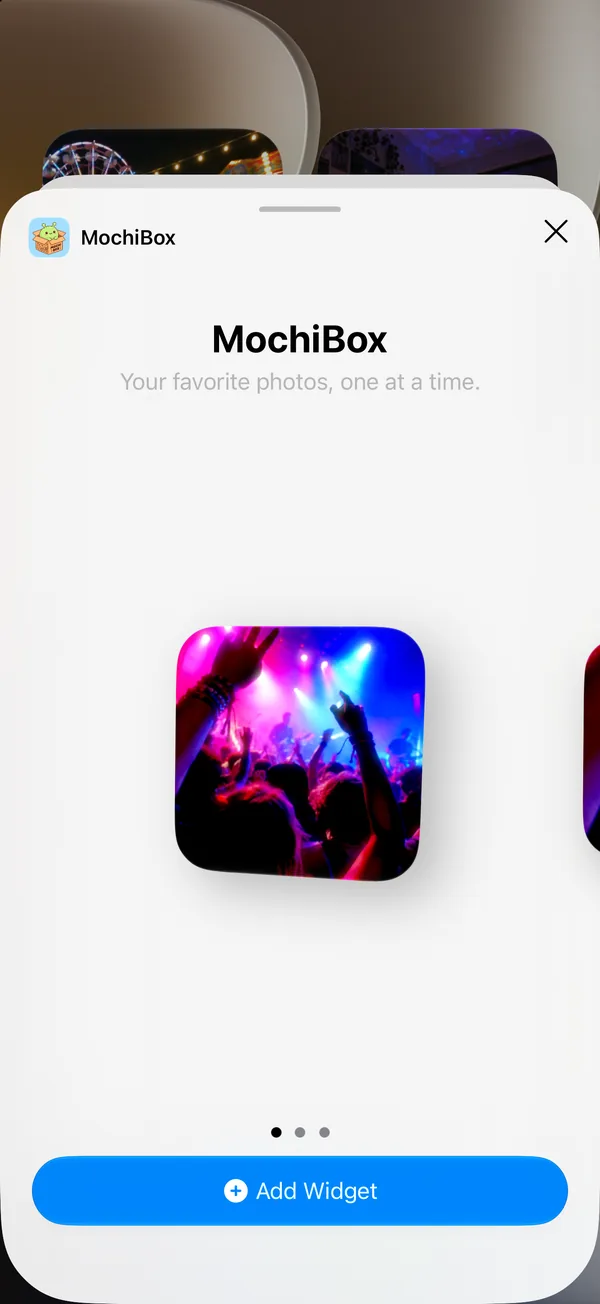
Swipe to pick small, medium or large, then tap Add Widget. Drag it where you like, then tap the checkmark or Done.
Medium widgets are wide. Give a photo its own Wide crop so it fits nicely.
-
Pick the album
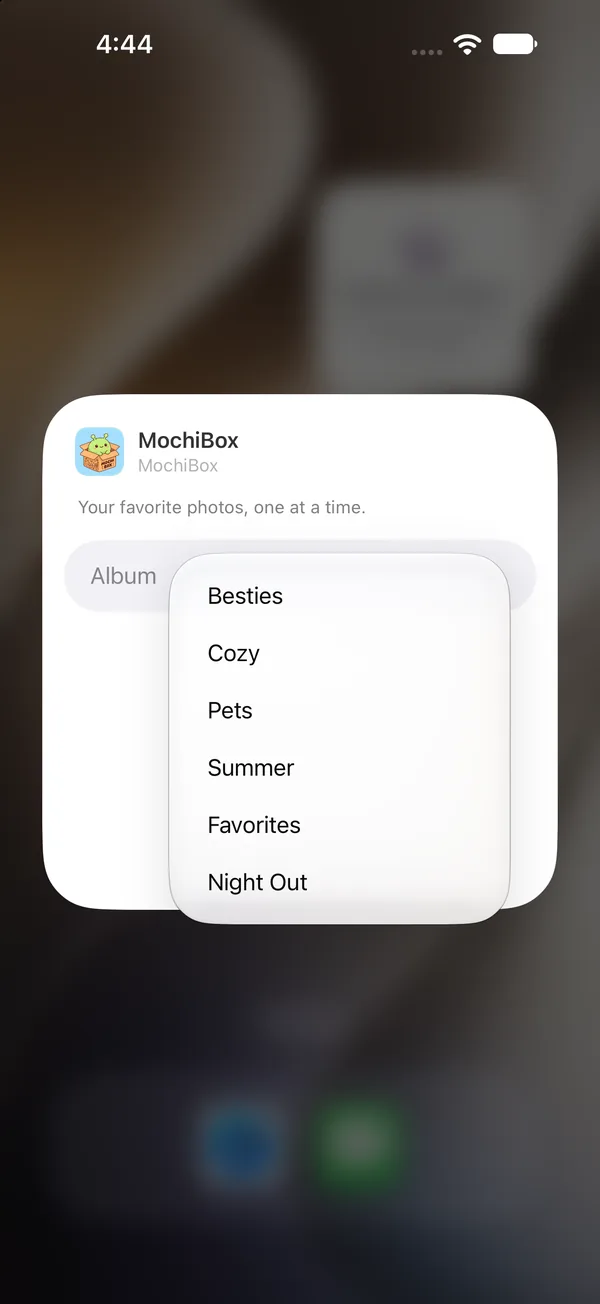
Touch and hold the new widget, choose Edit Widget, tap Album and pick the album you want it to show.
How often it changes, and whether it shuffles, is set in the album in MochiBox: anywhere from every minute to once a day.
-
Enjoy your Home Screen
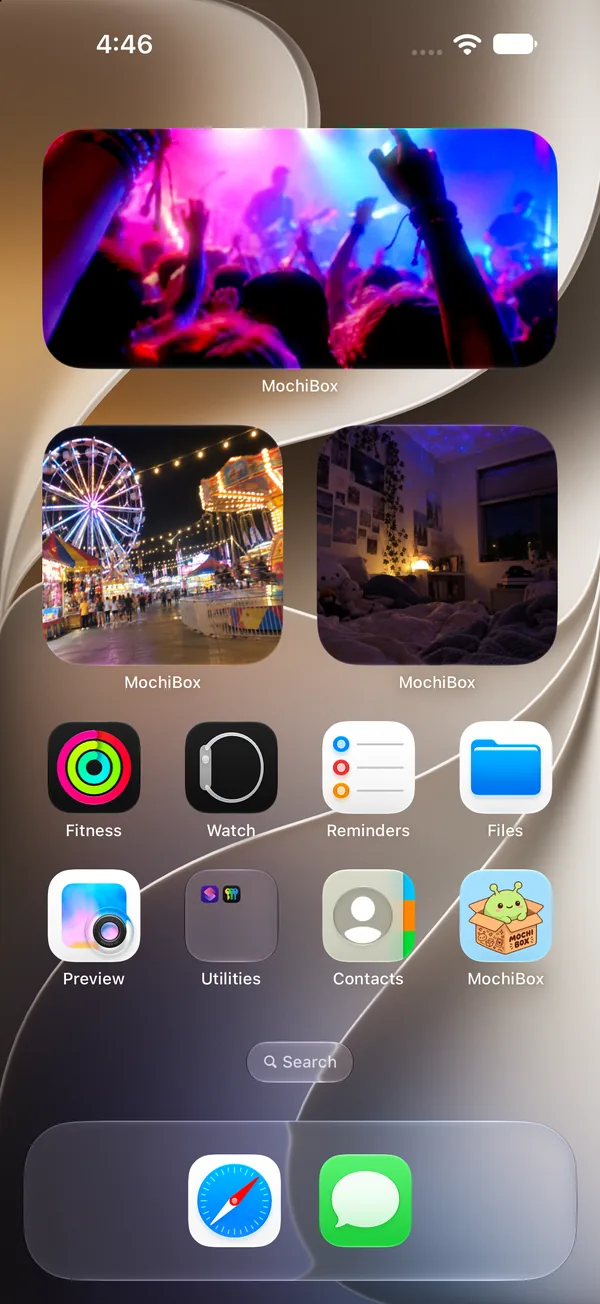
That's it. Add a few widgets and give each one its own album. Tap a widget any time to see that photo full screen.
add a few widgets—give each one its own album
Troubleshooting
My widget says “Choose an album.”
The widget's album was deleted or is empty, or it hasn't been given one yet. Touch and hold the widget, choose Edit Widget, and pick an album that has photos.
My widget says “Open MochiBox to get started.”
Open the MochiBox app once so the widget can find your albums, then go back to your Home Screen.
My widget doesn't change exactly on time.
iOS decides when widgets refresh, so short intervals like every minute are approximate. Longer intervals are more predictable.
Do the photos work on a tinted or clear Home Screen?
Yes. MochiBox keeps your photos in full color on tinted and clear Home Screens.
Can I have more than one MochiBox widget?
Yes. Add as many as you like, each in any size and each showing its own album.