
MochiBox / Photo editing
Frames, stickers, captions and crops
Everything you do to a photo in MochiBox is made for how it will look in a widget. Mix a Look with a frame and stickers, write on it, and crop it for each widget size.
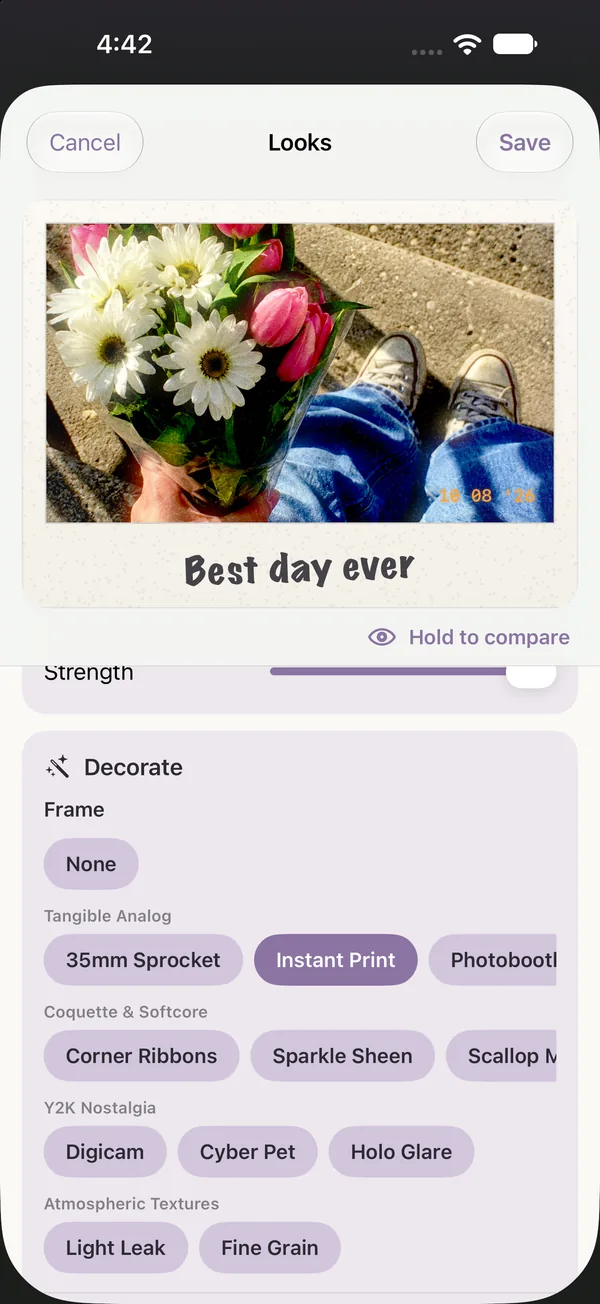
Frames
Frames sit around your photo and work with any Look. Choose one in Decorate.
Tangible analog
- 35mm Sprocket
- Instant Print
- Photobooth
Coquette & softcore
- Corner Ribbons
- Sparkle Sheen
- Scallop Mat
Y2K nostalgia
- Digicam
- Cyber Pet
- Holo Glare
Atmospheric textures
- Light Leak
- Fine Grain
Photobooth shows three moments in a strip, and each panel gets its own crop.
Handwritten captions
With the Instant Print frame, tap the bottom margin of the preview and write a caption: a date, a name, an inside joke. It's drawn in handwriting, slightly tilted, and shrinks to fit. Captions are one line of up to 24 characters, written one photo at a time.
The Instant Look uses the Instant Print frame automatically, so it's the quickest way to start.
Stickers & Stamps
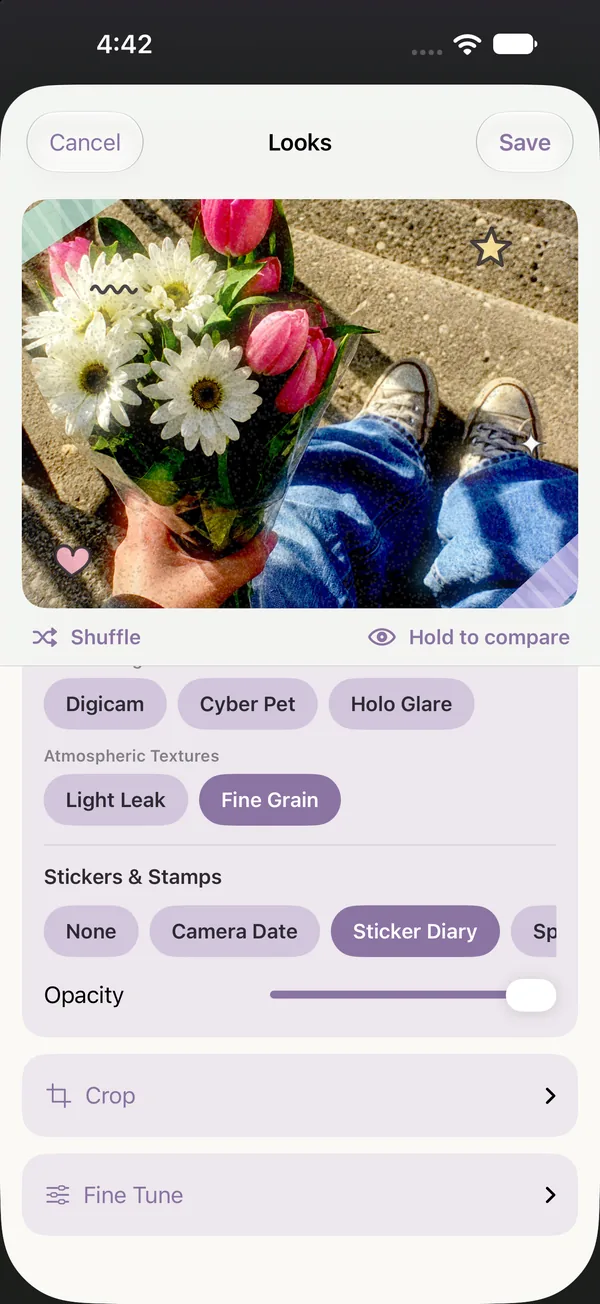
Add a sticker pack on top of a Look and a frame. Stickers stay near the edges and corners, never over the middle of your photo. Tap Shuffle for a new arrangement, and use Opacity to soften them.
- Camera Date
- Sticker Diary
- Sparkle Scatter
- Pixel Charms
- Washi Corners
- Doodle Notes
- Celestial
- Hearts & Bows
- Lace Doily
- Postage Stamp
Camera Date and Postage Stamp use the day your photo was taken.
Crop for every widget size
Small and large widgets are square; medium widgets are wide. MochiBox keeps a separate crop for each shape, so a photo can look right in both.
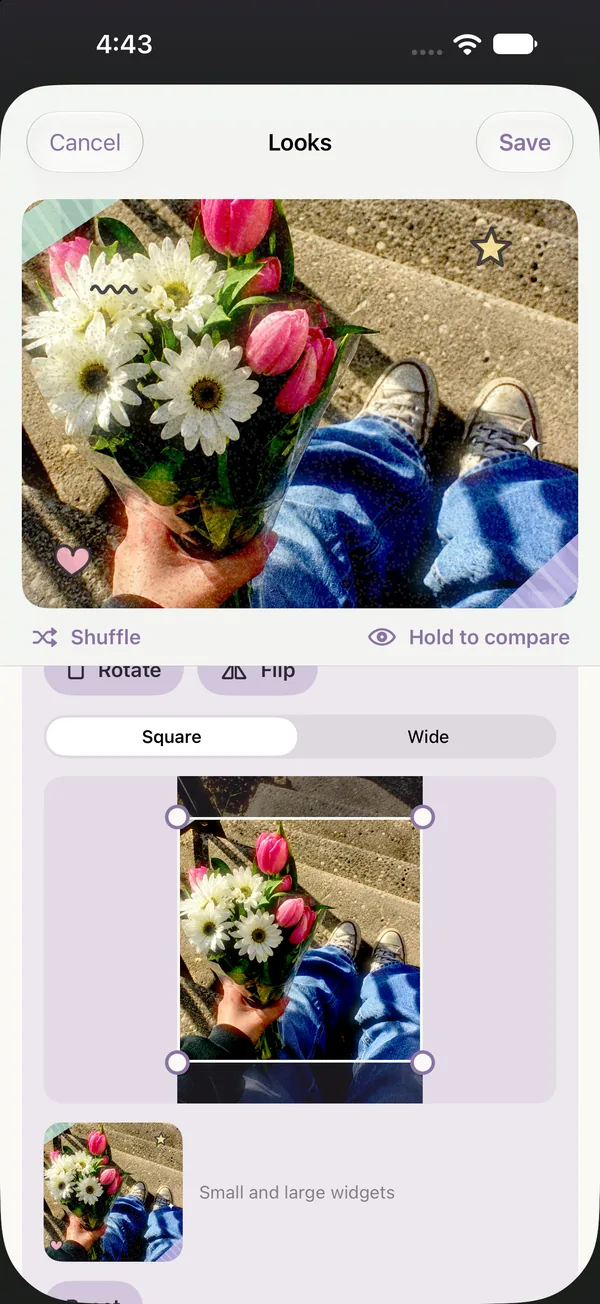
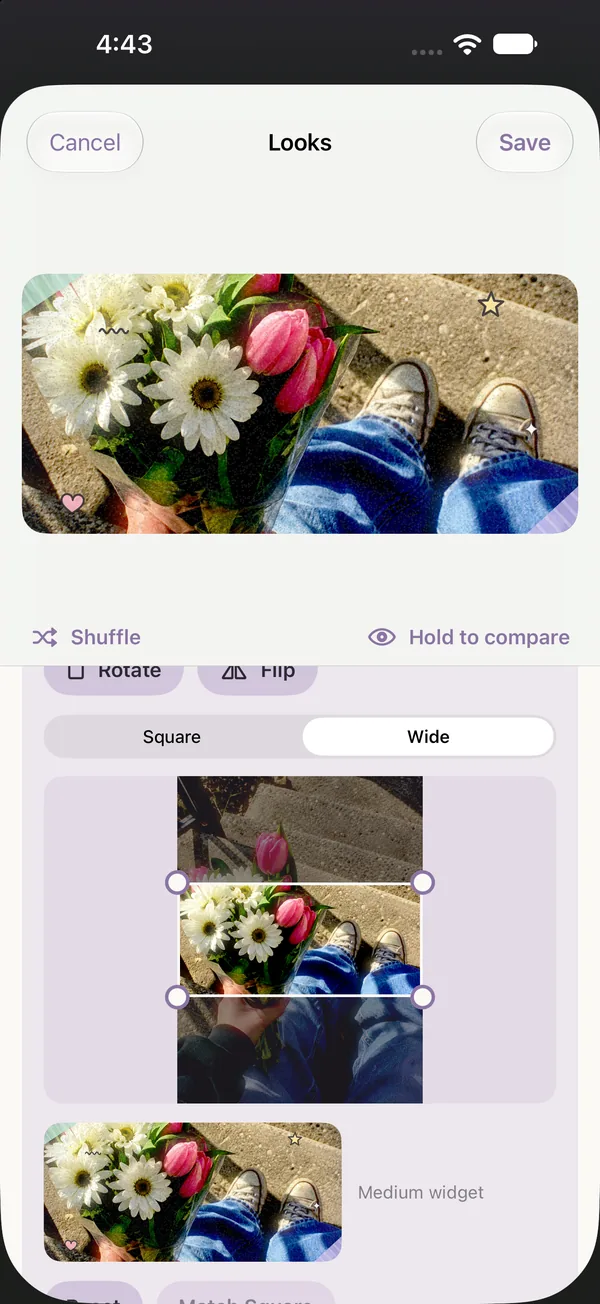
- Drag a corner handle to resize the crop, or drag inside it to move it. Pinch works too.
- Rotate and Flip turn or mirror the photo.
- Reset returns to the full photo. In Wide, Match Square makes the wide crop follow your square one.
- A small preview under the crop shows exactly what the widget will show.
Fine Tune
Adjust brightness, contrast, warmth, grain and fade, on top of any Look or on their own.
Edit many photos at once
In an album, tap Select, choose photos, then Edit → Edit Appearance. Looks, frames, stickers and Fine Tune apply to all of them, and you can undo a Look change right after. Crops and captions stay one photo at a time.
Your originals stay safe
MochiBox edits its own copy of each photo. Your photo library and Google Photos are never changed.
Make your Home Screen yours
$1.99 once. Every frame, sticker pack and Look included.
Download on theApp Store