
MochiBox / Google Photos widgets
Put Google Photos on your iPhone Home Screen
If your favorite photos live in Google Photos, MochiBox can show them in small, medium and large widgets, styled with Looks, frames and stickers. You share the photos you want; MochiBox never signs in to Google.
Add photos from Google Photos
-
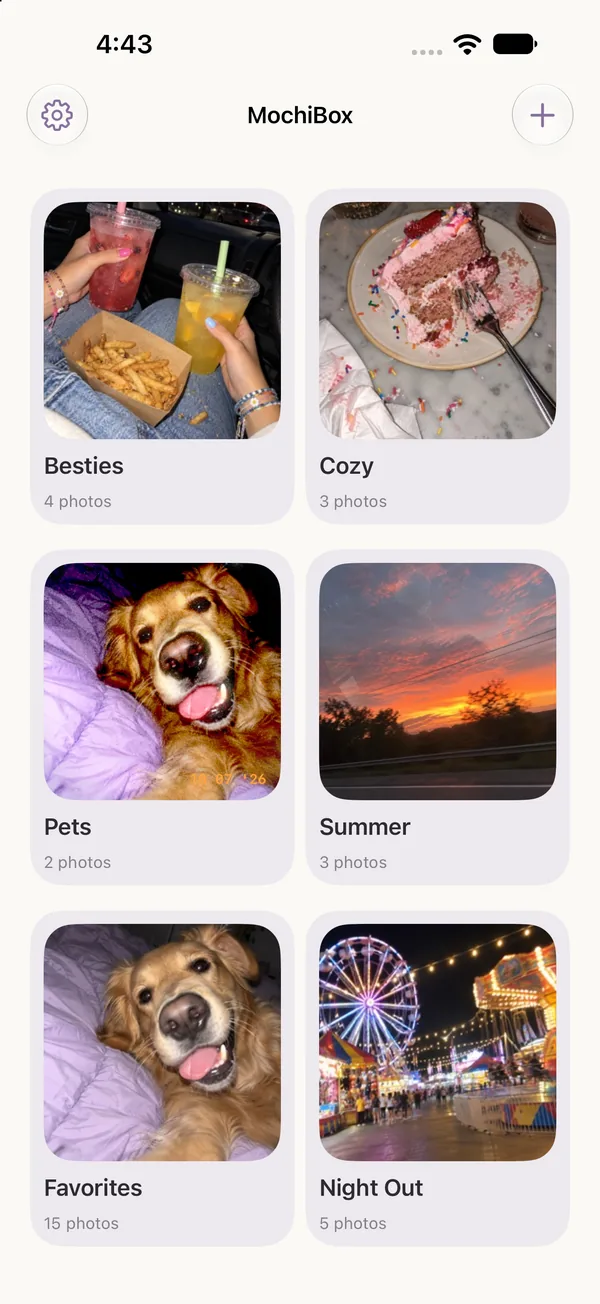
Make an album in MochiBox
Open MochiBox, tap +, and give your album a name. Then tap Google Photos in the album. MochiBox opens the Google Photos app and shows these steps.
-
Select photos in Google Photos
In Google Photos, touch and hold a photo, then tap any others you'd like. You can share up to 50 photos at a time.
-
Tap Share, then MochiBox
Tap Share, then Share to…, then MochiBox. Don't see MochiBox? Scroll to the end of the row of apps and tap More.
-
Tap Add Photos
Choose the album and tap Add Photos. The photos appear in the album with a small G badge, so you can tell where they came from.
MochiBox saves its own copies on your iPhone. Your Google Photos library stays exactly as it is, and nothing is uploaded anywhere.
Then make the widget
Add the widget
Touch and hold your Home Screen, tap Edit, then Add Widget, choose MochiBox and pick your album.
Step-by-step guide →Mix both libraries
One album can hold photos from Apple Photos and Google Photos together.
Google Photos questions
Do I need to sign in to Google?
No. MochiBox never connects to your Google account. Photos arrive only when you share them to MochiBox from the Google Photos app.
Will new photos in Google Photos appear automatically?
No. MochiBox only has the photos you share to it. To add more, share them again from Google Photos.
If I delete a photo in Google Photos, does it disappear from my widget?
No. MochiBox keeps its own copy on your iPhone, so the widget keeps showing it until you remove it in MochiBox.
How many photos can I share at once?
Up to 50 at a time. Share another batch to add more.
MochiBox isn't in the share sheet. What do I do?
Scroll to the end of the row of apps in the share sheet and tap More. MochiBox should be listed there, and you can move it up for next time.